
External users learn how to create a submission, attach an image to submission, and locate submission details
Opening the design approval page
The first step is to navigate to the Design Approval page from the Licensing Suite home page.
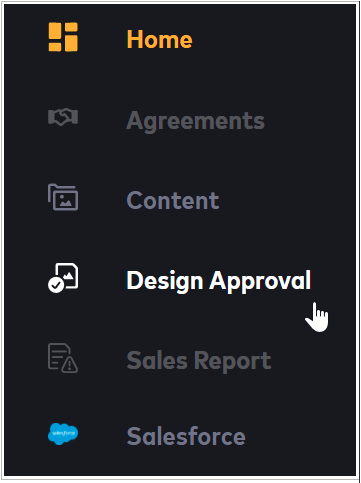
Changing dashboard display
To change the display of submissions to a table format (a useful option if you have many submissions), click the table icon on the right side of the dashboard.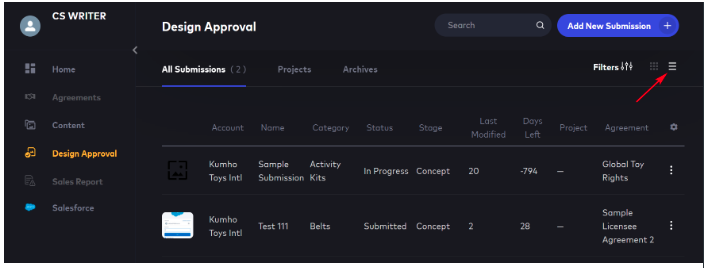
Click the nine-dot icon to return to the tile display. 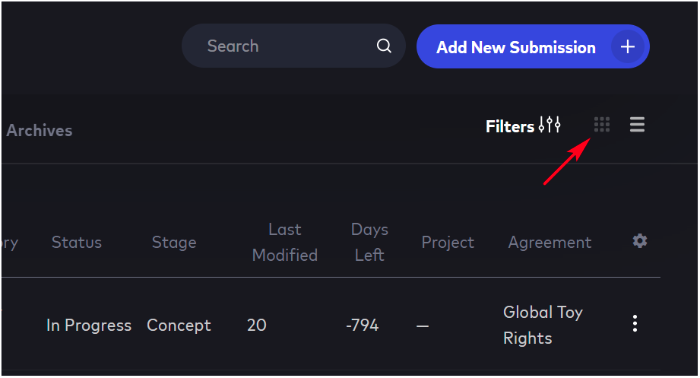
Adding a submission
To create a new submission, click the Add New Submission button. 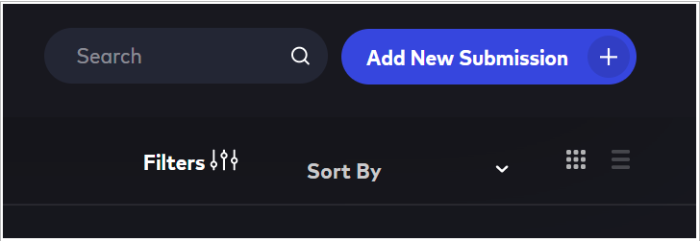
Fill in the fields on the Add New Submission form. Fields marked with an asterisk are required. 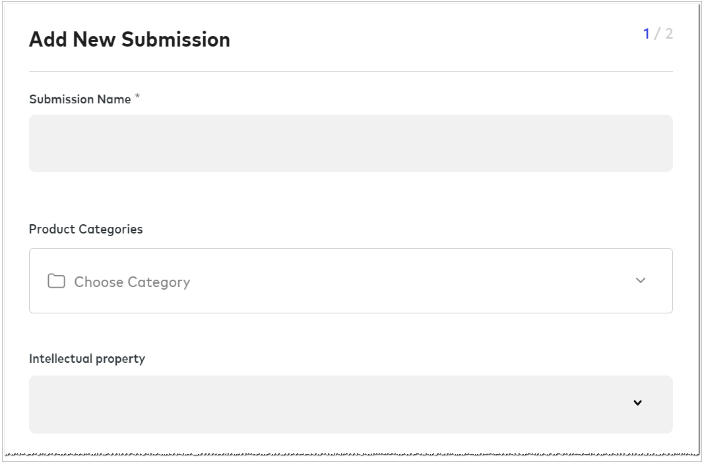
Click the Product Category field and select an option in the drop-down menu.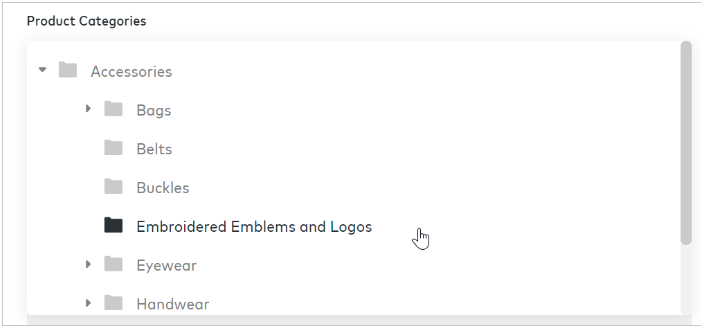
Click the Intellectual Property field and select an option in the drop-down menu.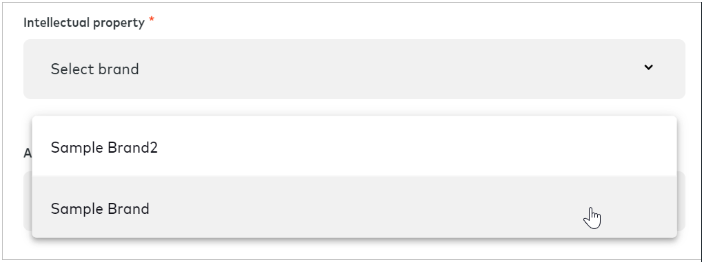
Note: Flowhaven auto-populates some fields depending on the granted rights in the agreement.
Uploading an Image
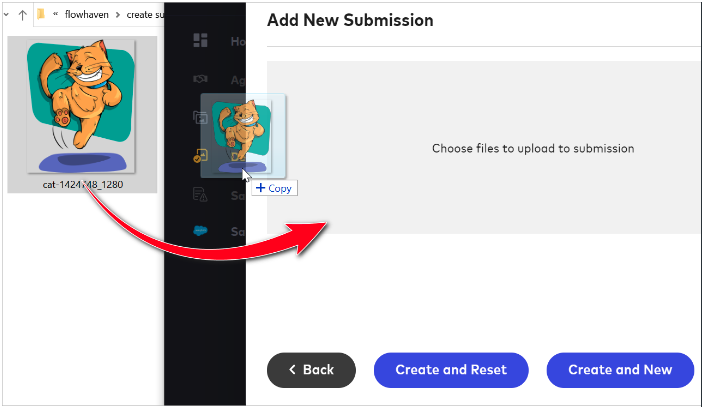
After you click next, a new window displays. Use this window to upload an image. There are two ways to upload an image.
- Click the center of the window and upload an image from your device.
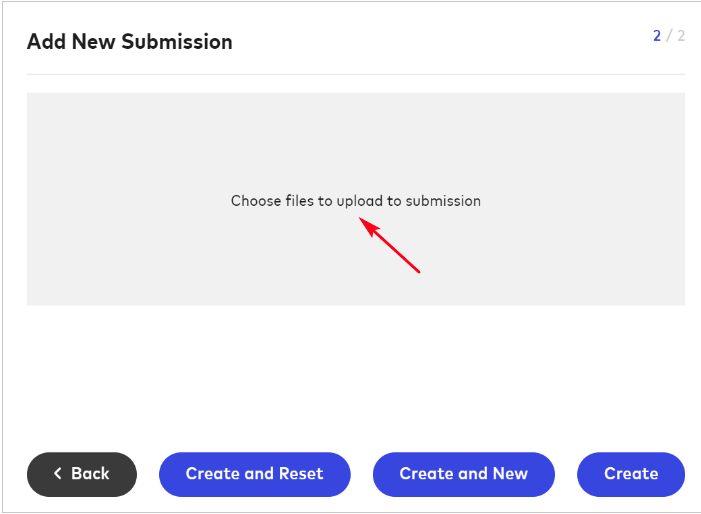
- Drag and drop the image from your device to the window.
Options
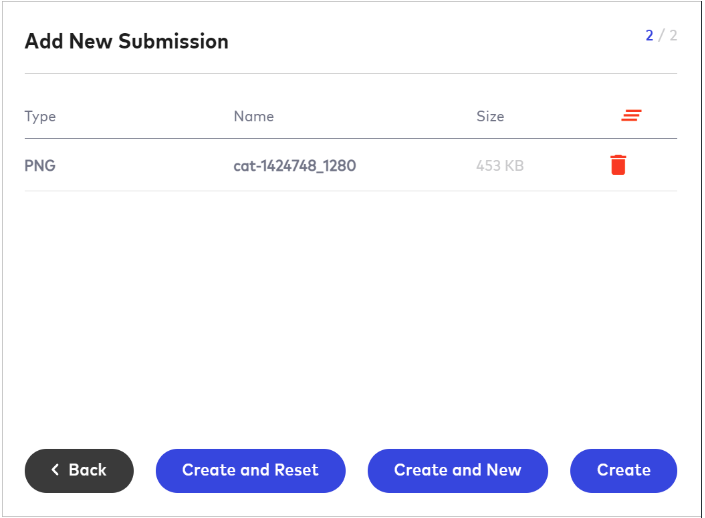
- Click the trash can icon to delete the image.
- Click Create to upload the image into the submission.
- Click Create and New to upload the image and create more submissions using the same data in the submission form (which you can edit before creating a new submission).
- Click Create and Reset to upload the image into the submission and open a blank submission form.
Submitting work
Up to this point, we have one image on the Item page. The status of this work is In Progress. This status tells the team that the work is not ready for review.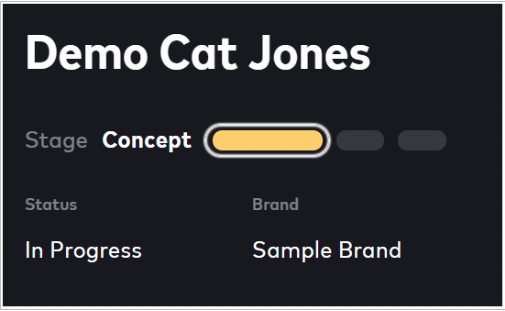
To submit work for review, change the status to Submitted. In the top right corner of the page, click Stage Action. Select Pull in the drop-down menu.
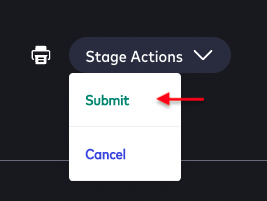
The status of the item changes to Submitted.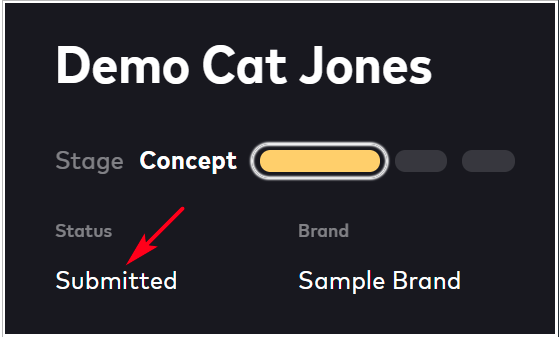
Important: The licensor or agent cannot view submissions or provide comments until the external user clicks the Submit or Resubmit button from the stage Action. If the status of the item is In Progress, the licensor or agent cannot respond to the content.
Locating submission details
As you and your team work with a submission, it is important to track changes. One way to track changes is to read the details on the submission dashboard.
To view the submission dashboard:
Go to the Design Approval dashboard and click a submission.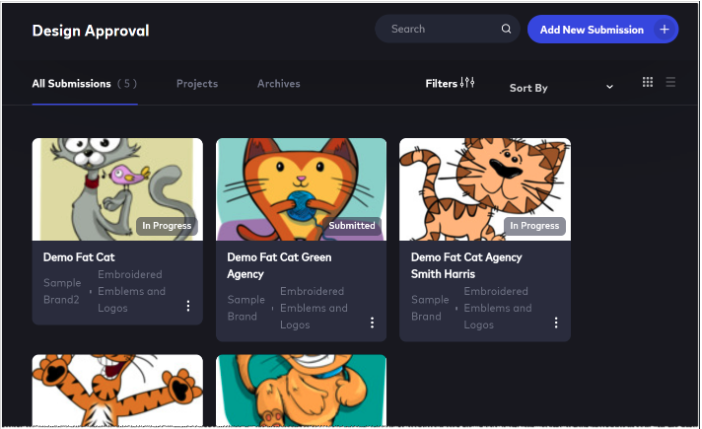
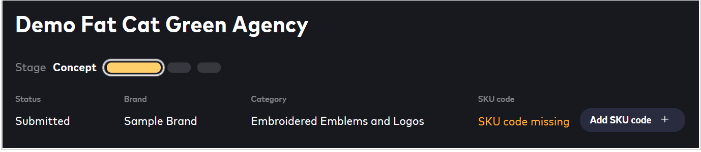
The top rows of the submission dashboard show key item information, including:
- stage
- status
- brand, category and SKU code
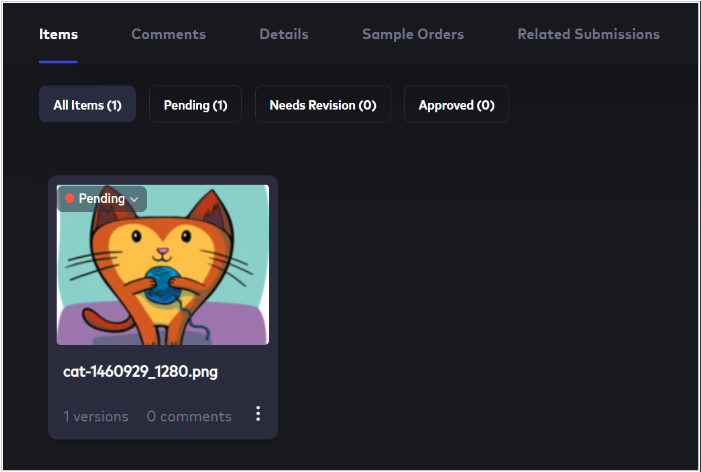
The next two rows contain fields that change if work progresses on a submission. This is where your team comes to review comments, check agreement details, and determine the current stage (i.e. Pending, Needs Revision, Approved, or Terminated).
Comments
0 comments
Article is closed for comments.