
When managing submissions in Flowhaven, External users can:
- view submissions
- customize display options on the Design Approval stage
- sort and filter submissions
- Respond to Submissions in their court by adding and editing items, commenting, and more
Before you start
If you are not sure how to create a submission or attach images as an external user, read How External Users Create a Submission.
Selecting a data set
The first step is to learn how Flowhaven organizes submissions on the Design Approval stage.
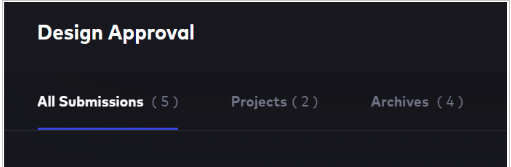
At the top of the dashboard, Flowhaven groups submissions into three categories. You can open a category by clicking a menu tab.
- All Submissions includes ongoing work.
- Projects is a tool to organize submissions by project.
- Archives contains Terminated or Final Approved submissions
Customizing submissions display
Changing the layout
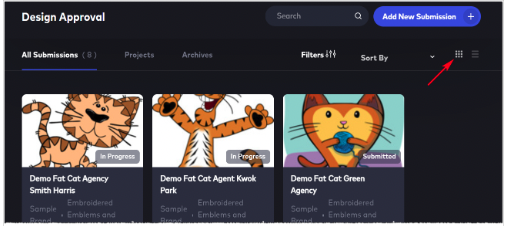
Thumbnail--or Grid View--is the default display layout. To return to the thumbnail layout, click the nine-dot icon in the top right corner of the screen.
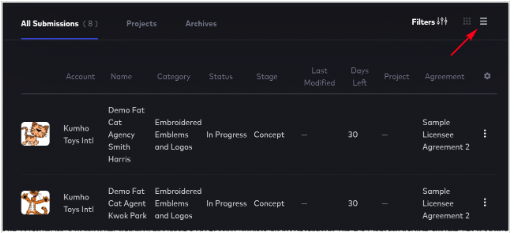
To display submissions in a list, click the three-bar icon in the top right corner of the screen.
Sorting submissions
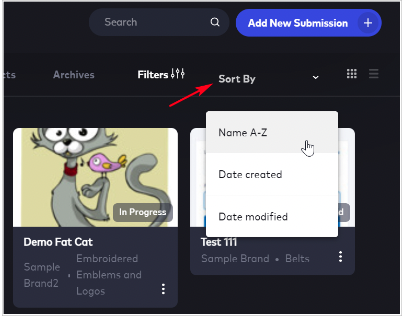
You can change the order of submissions on the dashboard. Click the Sort by menu tab and select an option on the drop-down menu.
Column sort
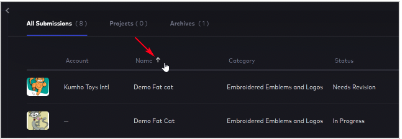
In List view, sort submissions by column information. Hover the mouse on a column heading and click the arrow to change the sort order.
Customize column headings
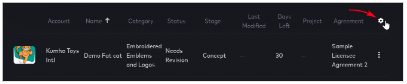
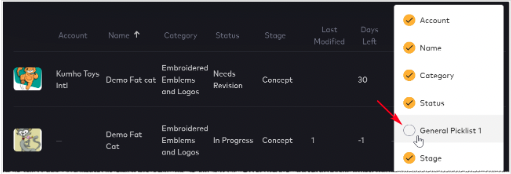
To change the number of headings in the List view, clear the gear icon on the right side of the list.
Check the headings that you wish to display in the list.
Filtering submissions
Click the Filters button to find specific types of submissions based on stage, status, account, Intellectual Property, etc.

You have the option to run a filtered search as a one time search, or you can customize and save your search by creating predefined filters to make your future searches faster. Click the drop down arrow to view your filters or create a new one.
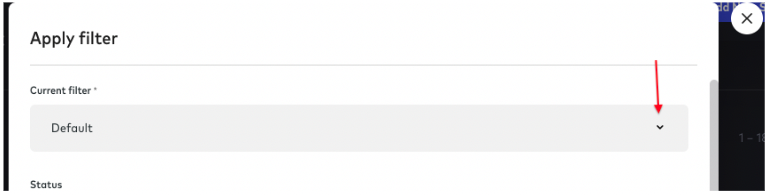
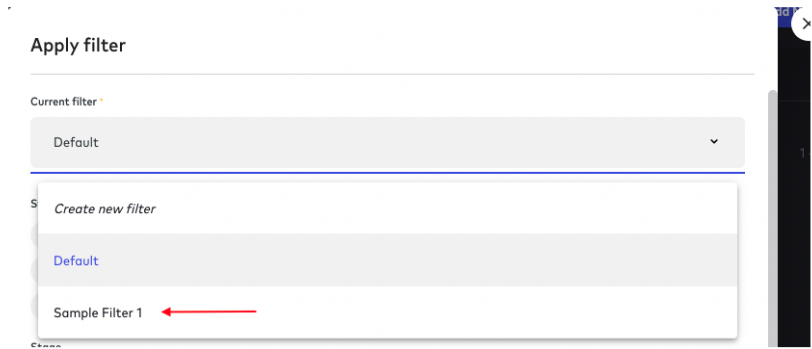
Any saved filters will be displayed in this drop down menu.
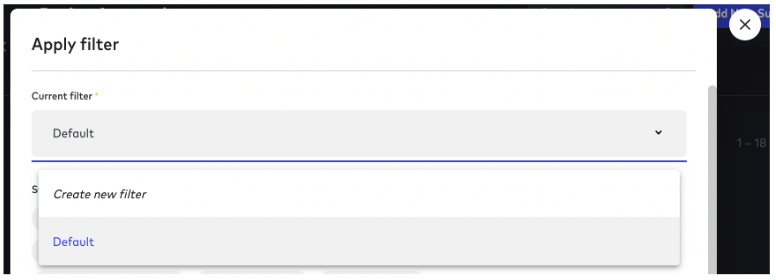
If you would like to create a customized filtered search click on the "Create new filter" option. From this option, you can name your filter any name you'd like.

Select your filtered options by Status, Stage, Account, Brand, Agreement, Category or any combination of them. Once you are done, click "Create" at the bottom.
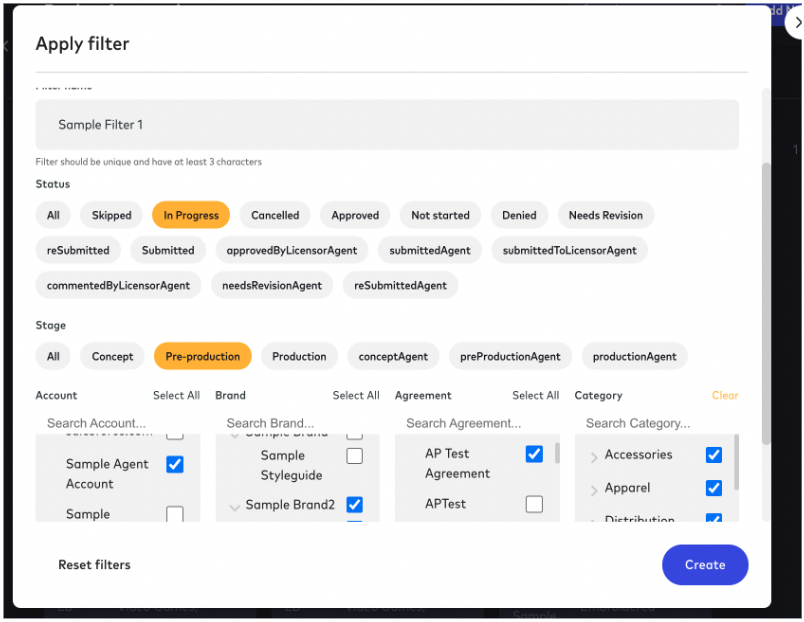
Note: The number of available keyword options presented in the filter depends on the number of status and stage labels on the submission. If your environment has unique workflows, this will increase the number of available options.
Next time you The newly created filter will be listed in the drop down moving forward.
Removing filters
Option 1
To delete a saved filter, simply select the filter from the drop down menu and click "Delete" at the bottom of the window.

Option 2
To remove filters, click the Reset filters button.

Adding items to a submission
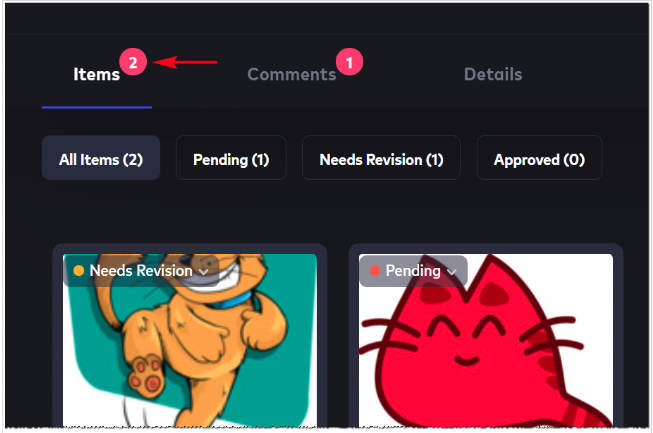
A submission can contain more than one item. If a submission is in your court (waiting for the first submission in a stage, marked as "Needs Revision," etc.), select the submission and then click the Add New Item button.
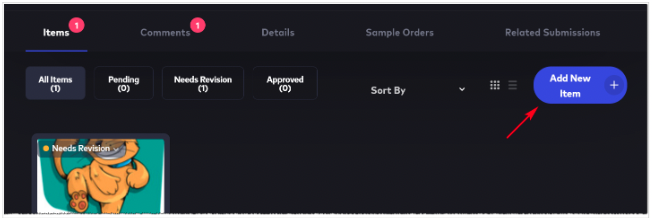
Upload the item. Use the guided workflow to upload the content. The number next to the Items menu tab changes.
Locating submissions that need revision
Licensors or agents sometimes want changes to an item. These items have a Needs Revision label. To locate these items, open a submission and click the Needs Revision menu tab.
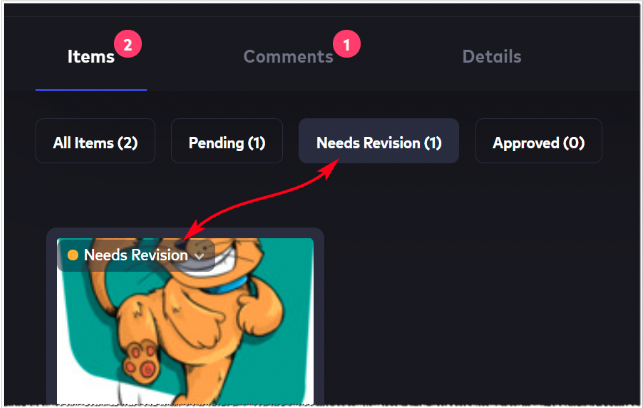
To submit revisions and reply to feedback, click the item. This opens the Tool view.
Tool view
Inside the Tool view, you can read comments, send replies, and submit new comments.
Note: For more information about comments, see How to Manage Submission Comments.
Uploading revisions
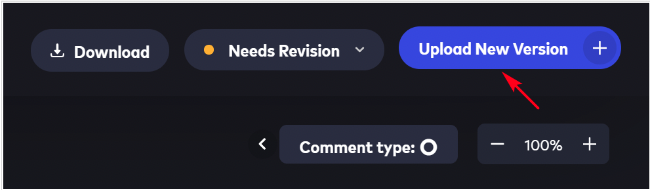
Inside the Tool view, click the Upload New Version button and upload content to Flowhaven.
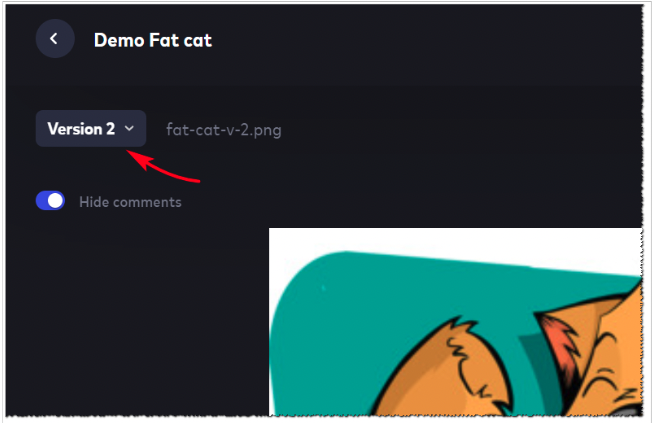
After you upload revised content, Flowhaven automatically creates a version label. The label displays at the top of the page. In the example below, the label is Version 2.
Comparing versions
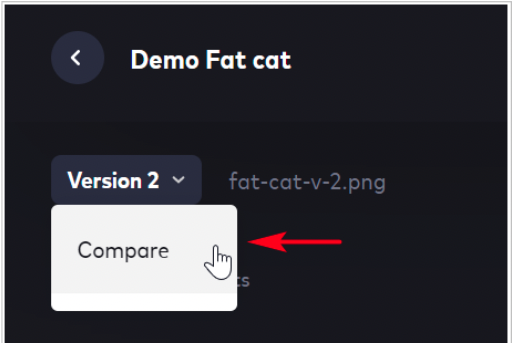
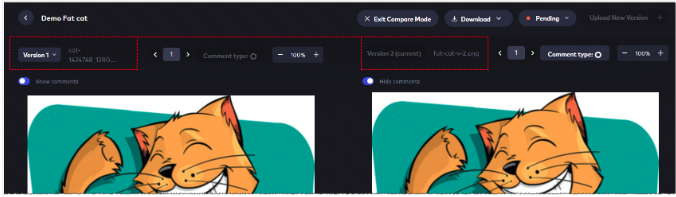
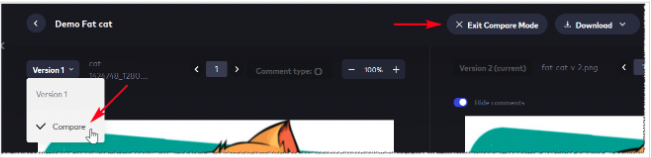
To see the content in a side-by-side fashion, click the Version label and select compare in the drop-down menu.
Flowhaven displays both versions on the stage.
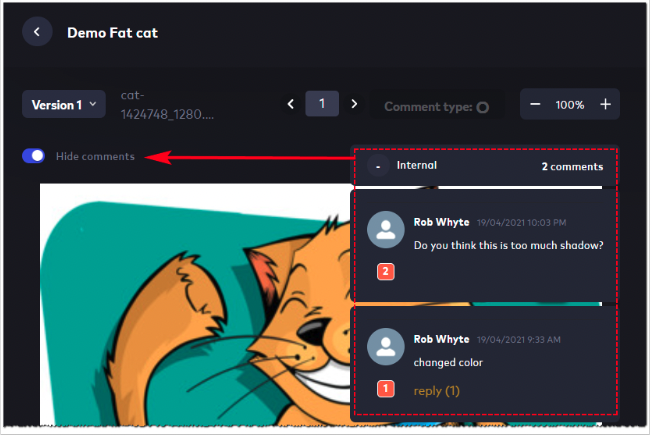
Click the toggle switch to read or hide image comments.
Working with multiple versions
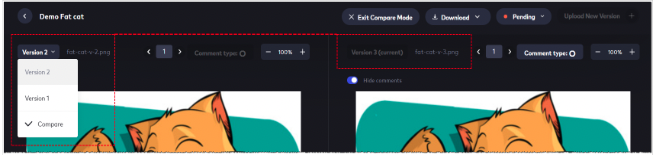
You can review two versions of the same design at once. However, you can quickly switch versions if you have more than two.
By default, Flowhaven displays the most recent version on the right side of the stage. Use the drop-menu to change the version that displays on the left side of the stage.
Closing Compare view
To leave the Compare view, click the Exit Compare Mode button at the top of the page. You can also uncheck Compare on the Version drop-down menu.
Downloading content
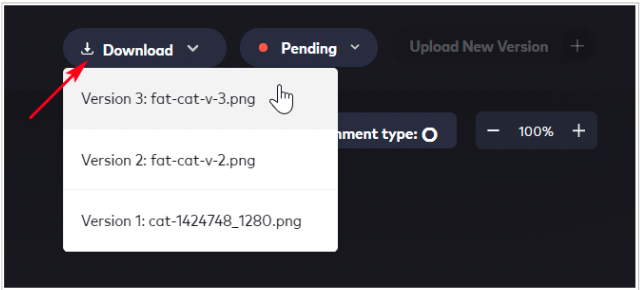
Click the Download button to download the item to your computer.
Re-submitting content
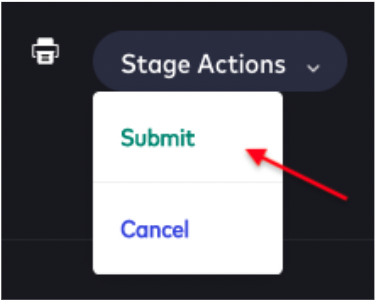
Once you have uploaded the new version, from the Submission View page click on the "Stage Actions" button and choose "Submit".
Comments
0 comments
Article is closed for comments.