
Filters
The filter option gives users the option to find specific submissions more efficiently.
Note: Filters are user specific. Custom filters created by one user are not visible to another.
We will review:
- How to create a one time search
- How to save a specific filter
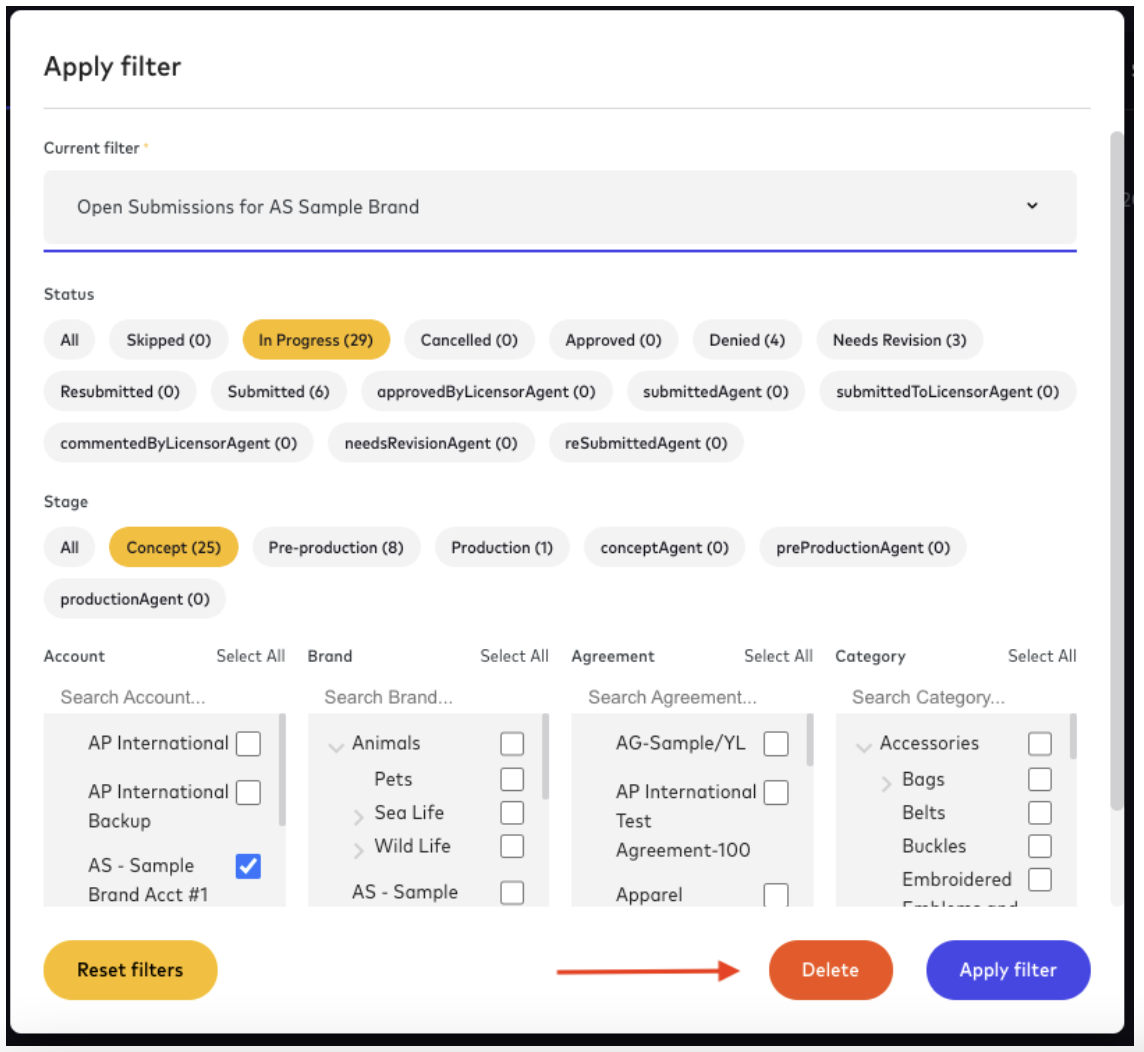
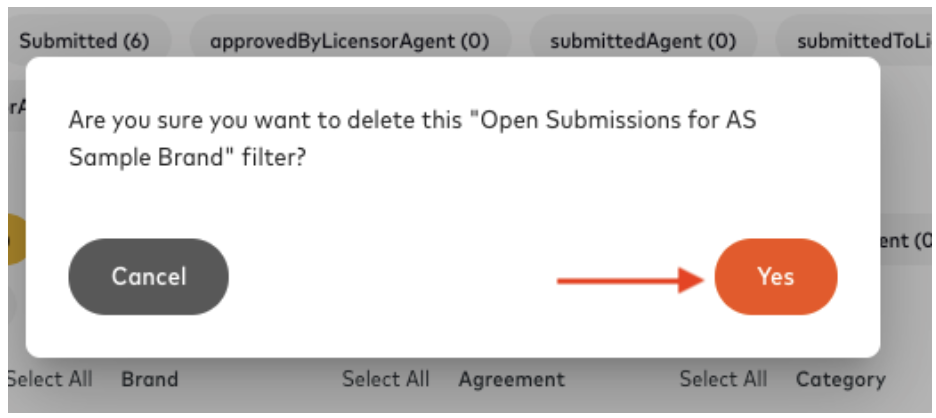
- How to delete a saved filter
- How to clear a saved filter
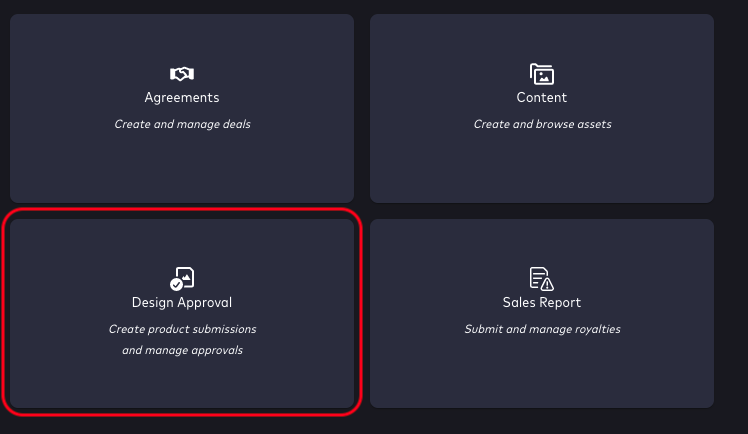
From the Licensing Suite navigate to the Design Approval module.
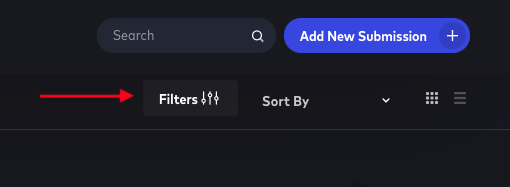
Click on the Filters option.
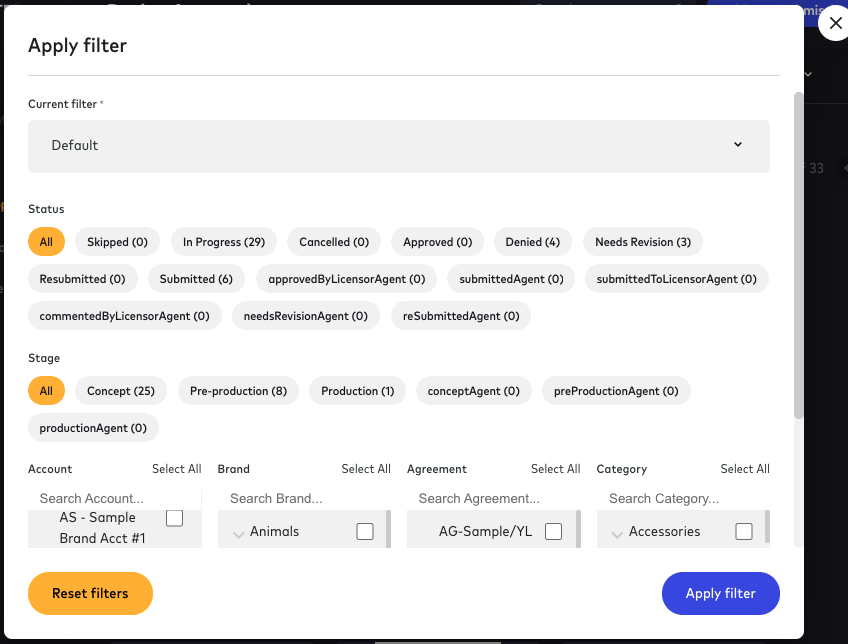
A pop-up window will appear with filter options.
*Please note: Available Stages, Status, and other options may appear differently in your Flowhaven environment.
Things to take note of
The current filter is currently set to Default which shows All Status, All Stages, with no selections under Account, Brand, Agreement or Category.
Default:
For this example we are going to select:
- In Progress for the status
- Concept under Stages
- And then Click Apply filter.
Please note: When you apply a filter, the custom filter is now the set default filter. The next time the Flowhaven App is loaded and the filters are selected, the last saved filter is the default. These filters can be cleared, adjusted or you can create multiple filters and save them.
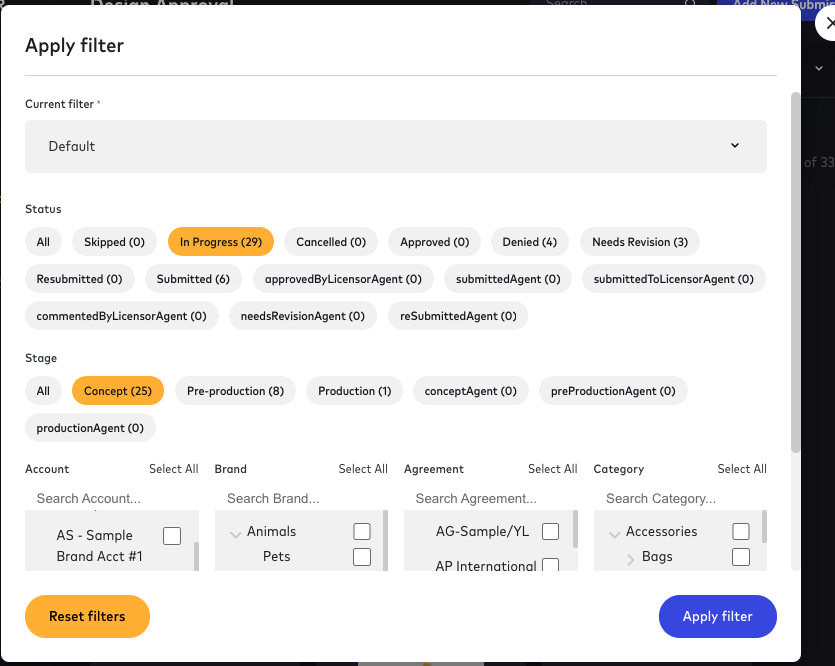
The selections will give you all submissions which fall under both of those categories and not just one or the other.
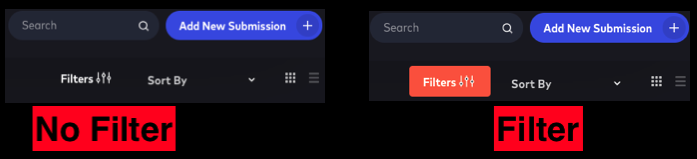
If you log out of your session and log back in, the filters will remain pre-set to how you left them. You can always tell when a filters is applied, by looking at the filter option and noting the color is not cleared but red.
If you log out of your session and log back in, the filters will remain pre-set to how you left them. You can always tell when a filters is applied, by looking at the filter option and noting the color is not cleared but red.
Customizing and saving filters
You can create and save customized filters to help sort through different types of submissions.From the Filter pop-up window click on the drop down next to Default.
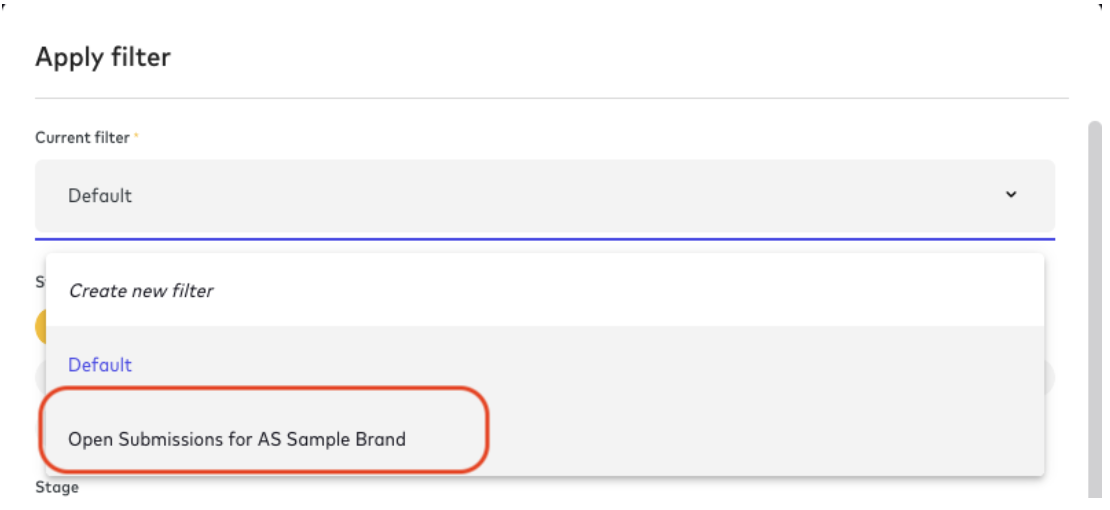
Click on Create new filter.
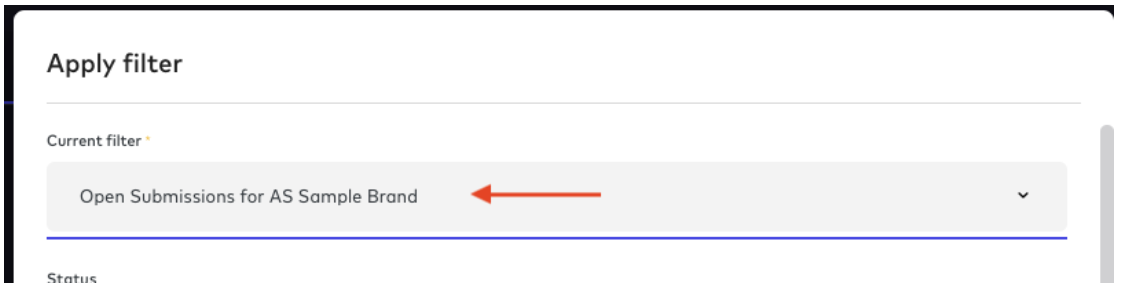
Give your filter a name, select your filter options and click Create.
Next time you open up your filters and choose the drop down your customized filter will be listed.
Clearing saved filters
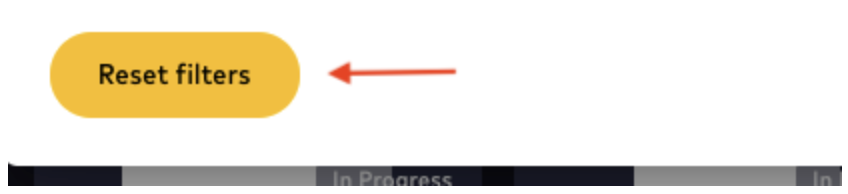
From the filter pop-up window, click on Reset filters at the bottom of the window.
Comments
0 comments
Article is closed for comments.